
Methods to transfer your 3D models to photorealistic rendering.
Professional articles
Back to articles
In this article we explain the essential steps to make a rendering starting from the SketchUp modeling software and using our LIVE solution.
After taking the SketchUp model to an intermediate stage we can already begin to consider what we need from a rendered result. It should be noted that although SketchUp and ARCHLine.XP Live are programs with completely different software platforms, we can continue to develop our project in SketchUp and synchronize the model in LIVE, whenever the project version is updated.
Replace materials and adding foliage
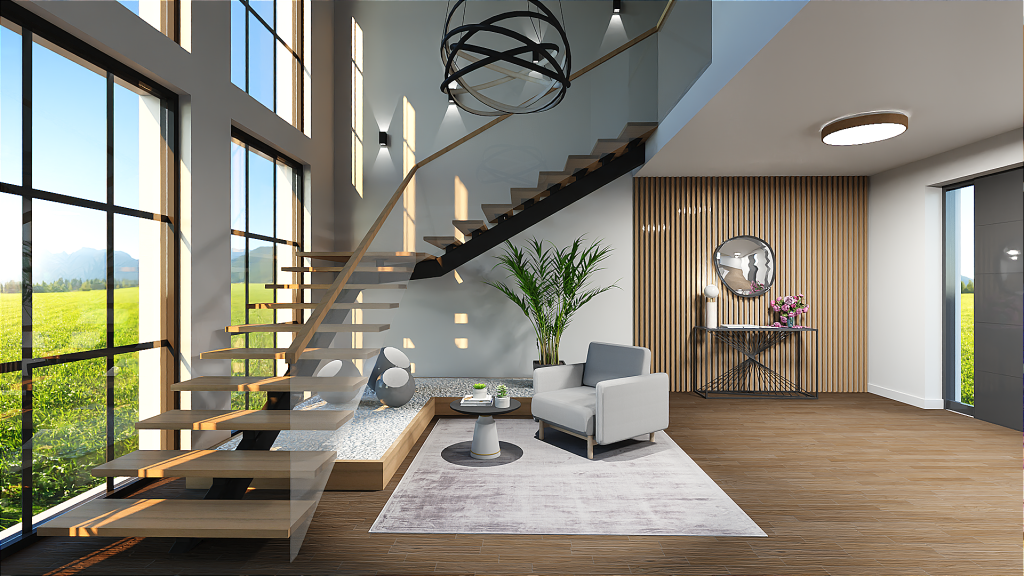

In this article we explain the essential steps to make a rendering starting from the SketchUp modeling software and using our LIVE solution.
We have already talked in previous articles about the differences between SketchUp and ARCHLine.XP modeling software.
After taking the SketchUp model to an intermediate stage we can already begin to consider what we need from a rendered result. It should be noted that although SketchUp and ARCHLine.XP Live are programs with completely different software platforms, we can continue to develop our project in SketchUp and synchronize the model in LIVE, whenever the project version is updated.
Adding animated objects
The first thing that comes to us when we find ourselves in a Real Time Render software is that we can “give life to the project”. We can animate the model, and this rendering software provides a huge library of people, cars and other elements that we can also animate, giving them path animations, with modifiable speeds and behavior.
To apply vegetation in flower beds and other similar spaces, ARCHLine.XP LIVE has a phenomenal tool called " Foliage Painter" through which we can compose a set of various plant species to be added in a pre-defined or randomized manner, giving the vegetation a very natural look . The following video shows not only how to use this tool, but also how to modify the material of some surfaces, using the ARCHLine.XP LIVE high definition and PBR material library.
How to add new materials
In ARCHLine.XP LIVE there is also the possibility to add and create materials to enrich the internal library. In this tutorial we take as an example two types of bricks created from textures obtained from the PolyHaven and AmbientCG sites , two free online libraries of rendering materials. We found all the PBR maps, not only for the texture of the material, but also for its roughness and bump.
Rendering in ARCHLine.XP LIVE Creation of photorealistic images
Let's first see how photorealistic images are created. There is no rendering time to speak of, because the program does the visuals in real time: from the 3D environment just create a view or update it and then you’ll find all saved views as JPG images in the right folders.
Video animations in ARCHline.XP LIVE
One of the greatest advantages of ARCHLine.XP LIVE is the ability to create video animations . We have already said that cars and people can move, now we just have to understand how we can create a sequence of clips in which we move the camera through space and how we record this path in a video. The following video shows just these steps.
If you want to try the integration between ARCHLine.XP LIVE and SketchUp, you can find a Trial version of the Plugin in the download section of our site.
This article is an excerpt from a publication of IberCad, the official distributor of ARCHLine.XP Live for Portugal.
To see the original article visit https://blog.totalcad.com.br/design-urbano-facil-com-sketchup-e-archline-xp
To see the original article visit https://blog.totalcad.com.br/design-urbano-facil-com-sketchup-e-archline-xp
Related articles
When the art of light and scenery meets the power of ARCHLine! - Interview with Cyrille Chabert
Meet Cyrille Chabert, an event professional who has been creating digital 3D plans and animations using the ARCHLine family for less than a year. ...
Read more
Rendering guide 2023
Capturing a photo-realistic image requires more than just pressing a button. It involves understanding how to handle lighting and shadows, be...
Read more
The Journey to a Successful ARCHLine.XP Reseller in Ecuador
Interview with Stalin Oleas Interviewer:...
Read more